The automated initialization of a new instance is a task that needs to be split between the cloud infrastructure and the guest OS. OpenStack provides the required metadata via HTTP or via ConfigDrive and cloud-init takes care of configuring the instance on Linux… but what happens on Windows guests?
Well, until recently there were very limited options, but the great news is that we just released cloudbase-init, an open source project that brings the features that are handled by cloud-init on Linux to Windows (and soon FreeBSD as well)!
Some quick facts about it:
- Supports HTTP and ConfigDriveV2 metadata sources
- Provides out the box: user creation, password injection, static networking configuration, hostname, SSH public keys and userdata scripts (Powershell, Cmd or Bash)
- It’s highly modular and can be easily extended to provide support for a lot of features and metadata sources.
- Works on any hypervisor (Hyper-V, KVM, Xen, etc)
- Works on Windows Server 2003 / 2003 R2 / 2008 / 2008 R2 / 2012 and Windows 7 and 8.
- It’s platform independent, meaning that we plan to add other OSs, e.g.: FreeBSD
- Written in Python
- Open source, Apache 2 licensed
To simplify things even more, here’s a free installer 
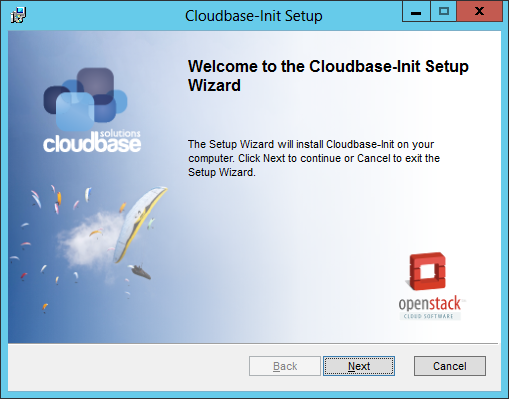
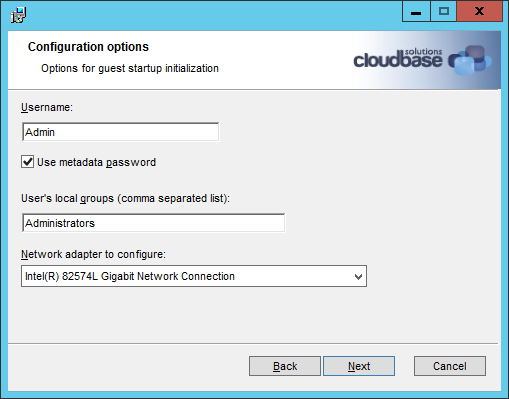
The installer takes care of everything, including installing a dedicated Python environment, generating a configuration file and creating a Windows service that runs at boot time. Configuration settings like the username, group membership and the network adapter to be configured can be specified during setup or later by editing the configuration file (cloudbase-init.conf).
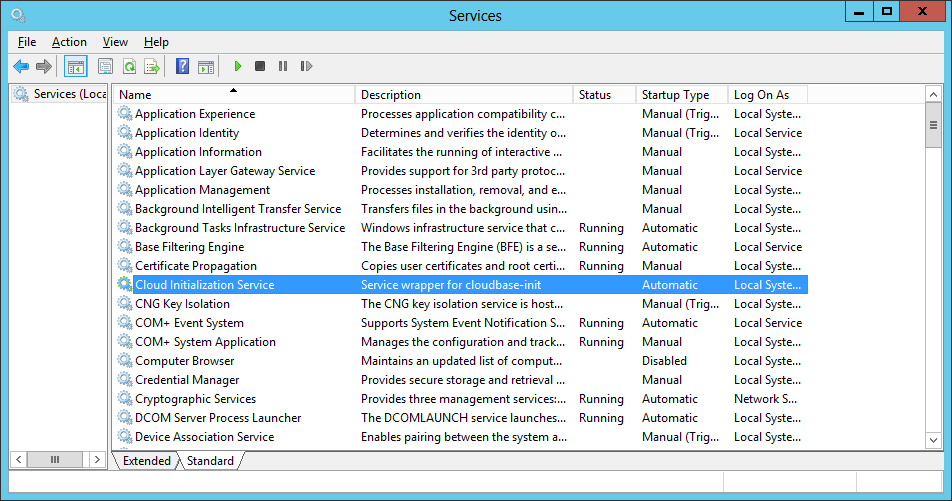
After the setup finishes, you’ll find a new service called “Cloud Initialization Service”. The service is not started yet, it wil start automatically at the next boot. All you have to do now is shutting down your VM and upload the image to Glance.
When the service runs for the first time at boot, it will look for a metadata data source by checking the available ones in the order provided in the cloudbase-init.conf file. By default it looks for the ConfigDrive and then for the classic HTTP Url on 169.254.169.254 (IP address configurable in the conf file).
After retrieving the metadata, the service executes a list of plugins:
cloudbaseinit.plugins.windows.sethostname.SetHostNamePlugin
Sets the instance’s hostname. It triggers an automatic reboot to apply it.
cloudbaseinit.plugins.windows.createuser.CreateUserPlugin
Creates / updates a local user, setting the password provided in the metadata (admin_pass). The user is then added to a set of local groups. The following configuration parameters control the behaviour of this plugin:
- username: default: Admin
- groups: Comma separated list of groups. Default: Administrators
- inject_user_password: Can be set to false to avoid the injection of the password provided in the metadata. Default: True
cloudbaseinit.plugins.windows.networkconfig.NetworkConfigPlugin
Configures static networking.
- network_adapter: Network adapter to configure. If not specified, the first available ethernet adapter will be chosen. Default: None
cloudbaseinit.plugins.windows.sshpublickeys.SetUserSSHPublicKeysPlugin
Creates an “authorized_keys” file in the user’s home directory containing the SSH keys provided in the metadata. Note: on Windows a SSH service needs to be installed to take advantage of this feature.
cloudbaseinit.plugins.windows.userdata.UserDataPlugin
Executes custom scripts provided with the user_data metadata (plain text or compressed with gzip).
Supported formats:
Windows batch
The file is executed in a cmd.exe shell (can be changed with the COMSPEC environment variable). The user_data first line must be: rem cmd
Powershell
Scripting is automatically enabled if not set (RemoteSigned). The user_data first line must be: #ps1
Bash
A bash shell needs to be installed in the system and available in the PATH in order to use this feature. The user_data first line must start with: #!
When the configuration is done, the service saves a value in the Windows registry to avoid the execution of the same plugins on the next boot. In order to trigger again the execution of the configuration scripts, just remove the following Registry key and restart the service or reboot:
HKEY_LOCAL_MACHINE\Software\Cloudbase Solutions\Cloudbase-Init
Note: on 64 bit versions of Windows, the key is:
HKEY_LOCAL_MACHINE\Software\Wow6432Node\Cloudbase Solutions\Cloudbase-Init
Unattended setup
The setup can be done in silent mode as well, which means that it can be easily integrated in a Puppet, Chef or Windows GPO deployment strategy.
Here’s the basic syntax, with an additional optional log file to verify that everything worked fine:
msiexec /i CloudbaseInitSetup.msi /qn /l*v log.txt
You can also pass parameters, for example to specify the ethernet adapter to be configured:
msiexec /i CloudbaseInitSetup.msi /qn /l*v log.txt NETWORKADAPTERNAME="Intel(R) PRO/1000 MT Network Connection"
The post Cloud-Init for Windows instances appeared first on Cloudbase Solutions.